A LOIC (Low Orbit Ion Cannon) is one of the most powerful DOS attacking tools freely available. If you follow news related to hacking and security issues, you doubtless have been hearing about this tool for the past several months. It has become widely used, including in some highly-publicized attacks against the PayPal, Mastercard and Visa servers a few months back. This tool was also the weapon of choice implemented by the (in)famous hacker group, Anonymous, who have claimed responsibility for many high profile hacking attacks, among them, hacks against Sony, the FBI and other US security agencies. The group not only used this tool, but also requested that others download it and join Anonymous attacks via IRC.
In this brief article, I will give an overview and operational model of the tool. There are 2 versions of the tool: the first is the binary version, which is the original LOIC tool. The other is web-based LOIC or JS LOIC.
First, we must define the meaning of a DDoS attack. DDoS attacks are a main concern in internet security, and many people misunderstand what exactly they are.
The kind of information you can learn from a tracking link depends on the type of link you're using. There are two types of tracking links that Grabify can create, the default being a lightweight and nearly undetectable redirect to a decoy URL. This default option looks and acts like a URL shortener, and the average person wouldn't notice it.
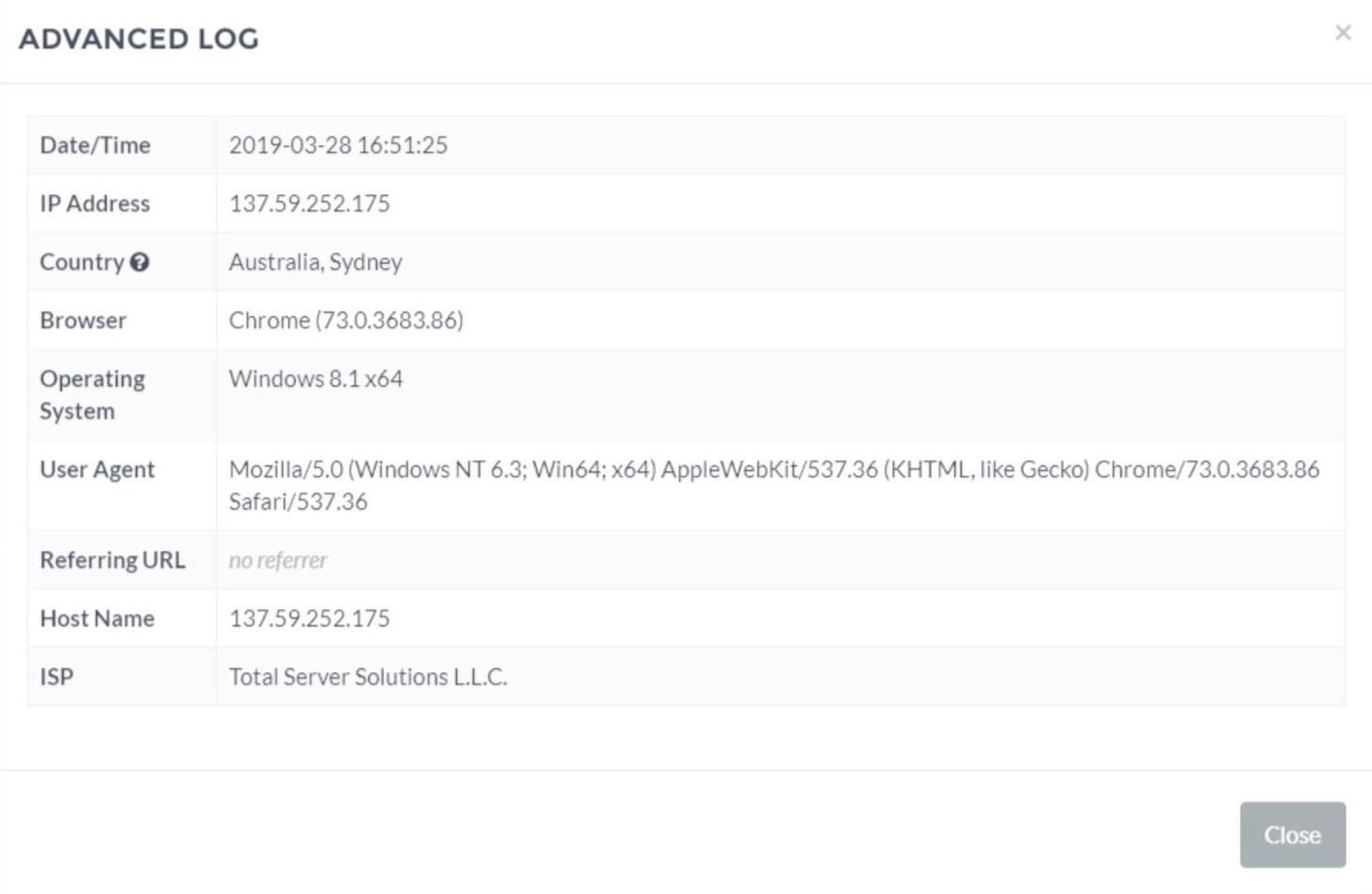
From this kind of link, you can expect to get the IP address, country, browser, operating system, hostname, and internet service provider. For someone that's harassed online, that alone may be enough to file a police report or press charges.
If you want to use the advanced tracking link that Grabify offers, the target will see a brief redirect page that looks like this:
Because the average user wouldn't recognize this as something to be suspicious of, it's generally safe to use when you need more information. Because we're rendering a page this time, we can learn a lot more information about the user.
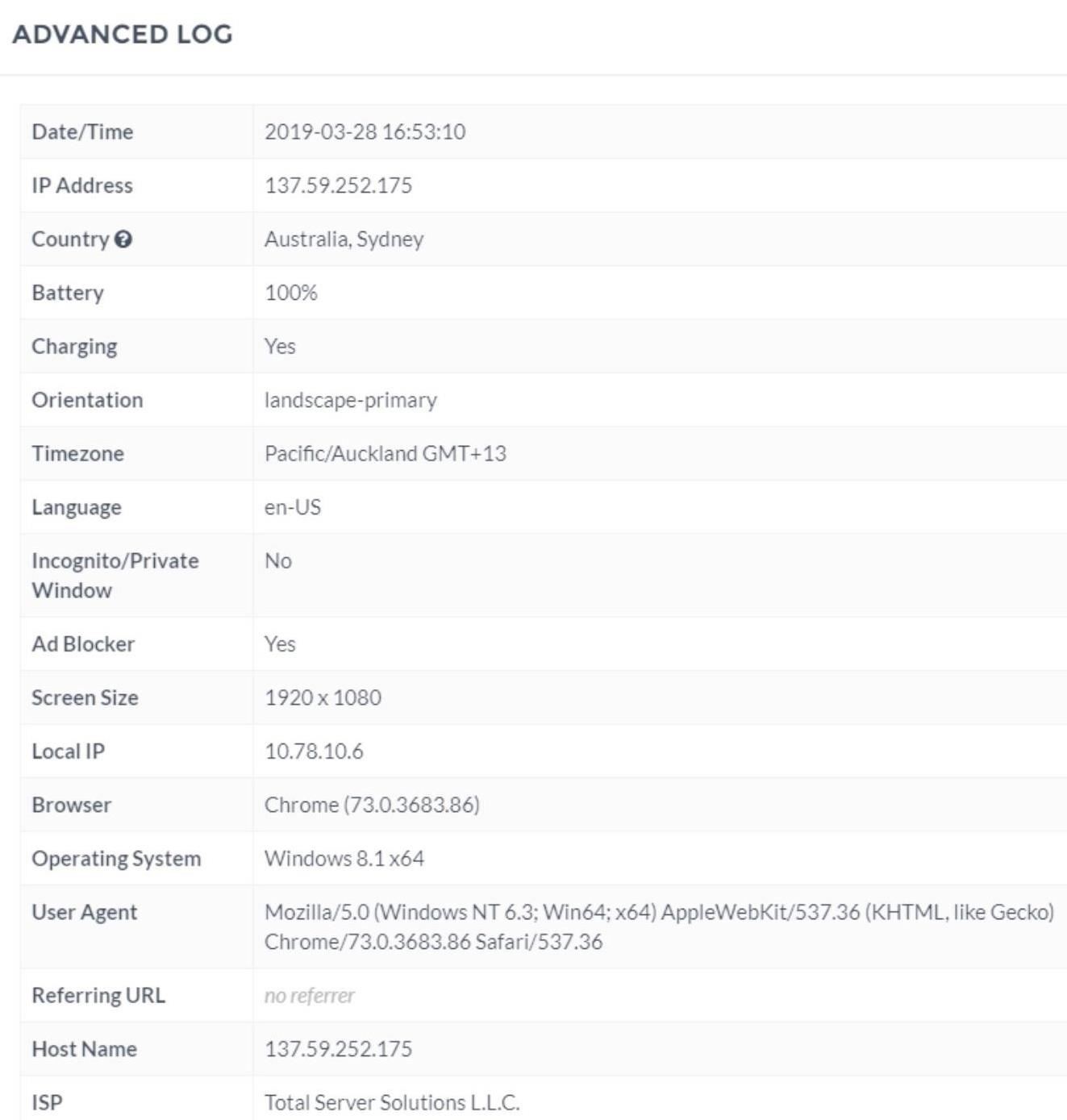
With the advanced tracking, we can see the battery level and whether or not the device is plugged in. We can see the make and model of the device, the internal network IP address, the time zone, screen size, and even which way the user is holding their device. This level of detail can get downright creepy and can give you the upper hand in proving someone isn't really who they say they are.
✳️ Video Tutorials :-
.
FEATURES
Date/Time
IP Address
Country
City
Battery
Charging
Orientation
Connection Type
Timezone
Language
Incognito/Private Window
Ad Blocker
Screen Size
Local IP
Browser
Operating System
Device
GPU
Bot Name
Bot URL
User Agent
Referring URL
Host Name
ISP
VPN/Proxy Detection
Tor Detection
Virtual Machine Detection
Step 1: Find a Plausible Link to Send
For this attack to work, we need to create a scenario where it makes sense for the target to click or tap a link. There are two different kinds of links we can send, one loads a fake referral page that grabs more information, and the other is a simple pass-through link that is less visible but also records less information.
Step 2: Create a Tracking URL
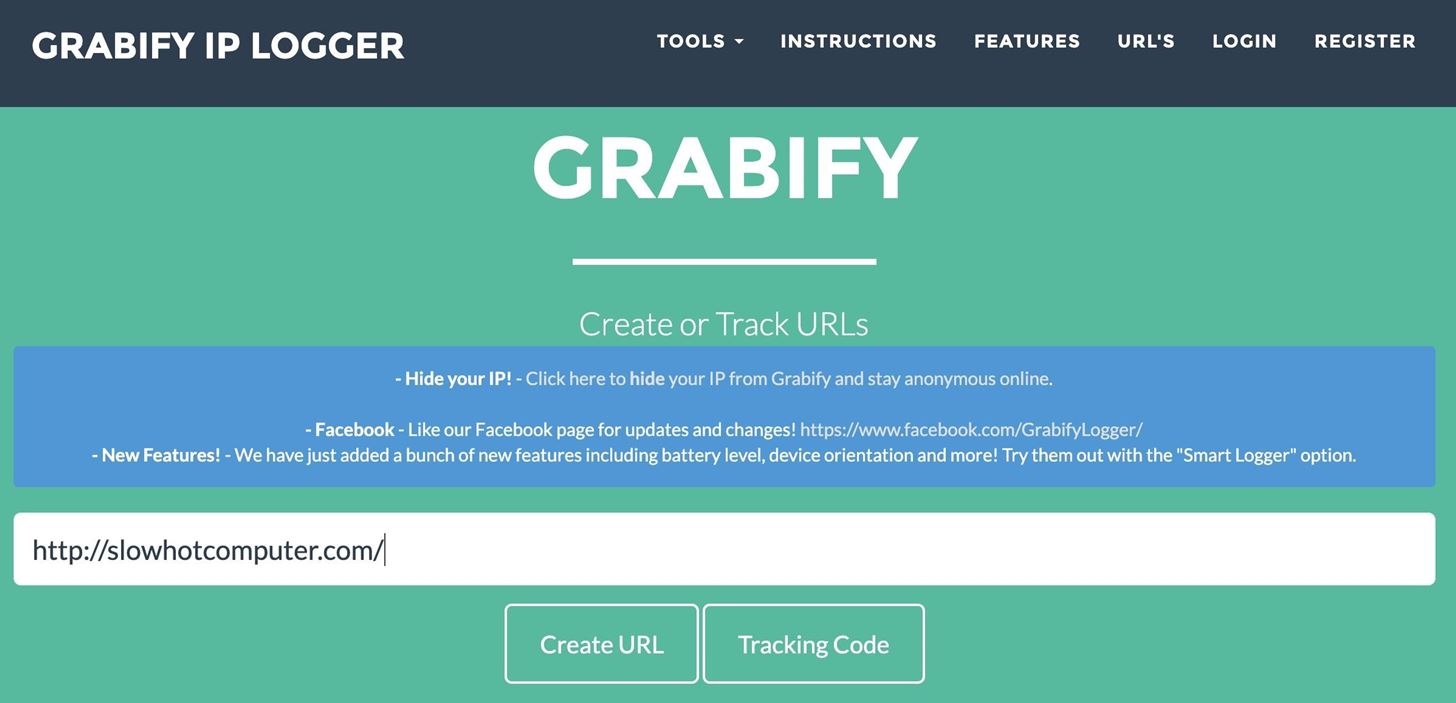
The first step in tracking a target with a Grabify link is to find a link you think your target would expect to receive. It should be something unsuspicious when the target ends up at the URL, and it will serve as a cover for the tracking link you create. You want to pretend like you're sending them a regular innocent URL shortened version of whatever decoy link you pick.
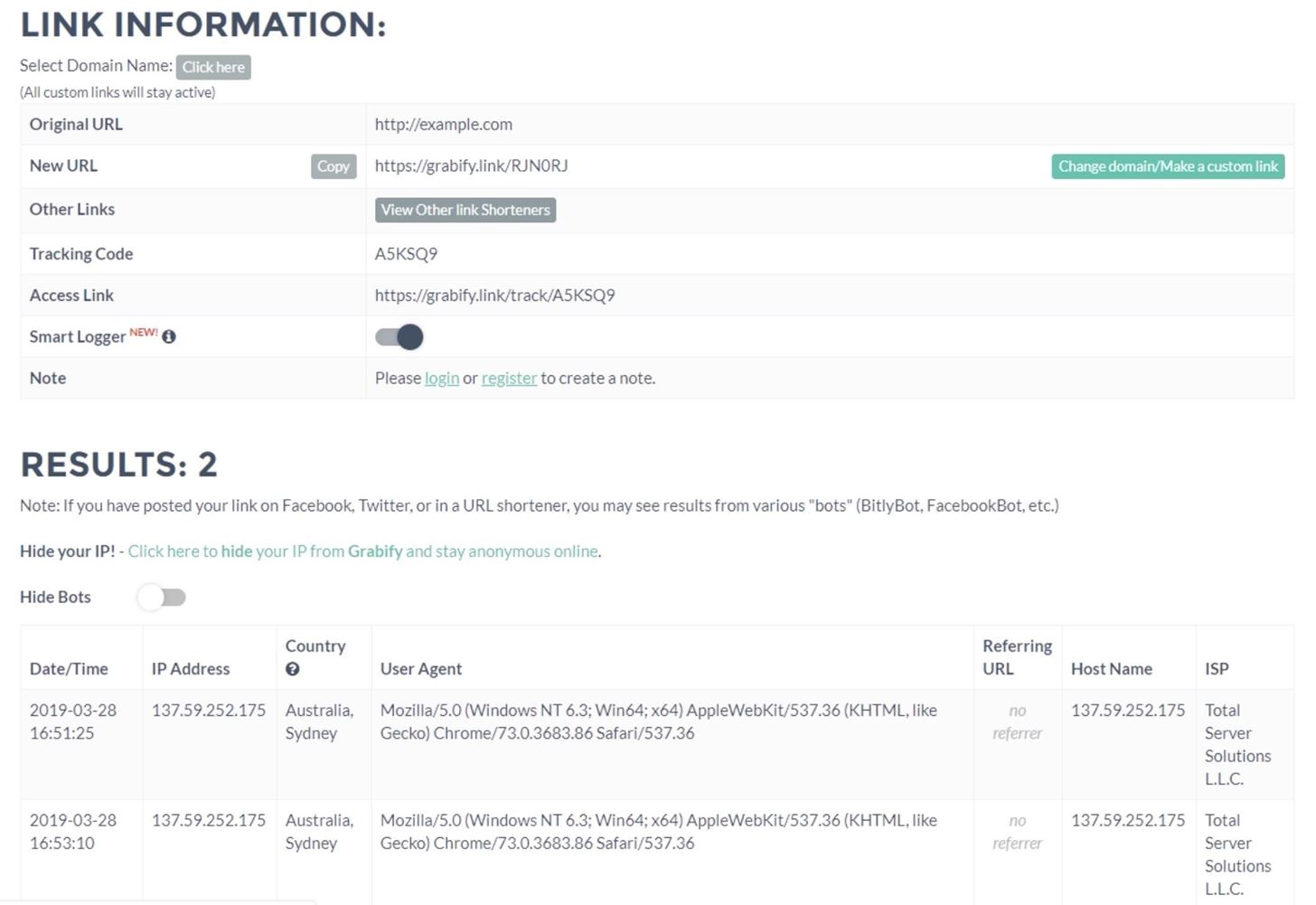
Grabify will generate a tracking page, complete with a tracking link and interface with information about each time someone has clicked or tapped on the link. When you first start, it should be empty, although some URL shorteners will use bots to preview the link you're shortening, and that data might show up.
Now that we have a functional tracking link, it's time to start making it look more like something our target would click or tap.
Step 3: Shorten & Hide Your Tracking Link
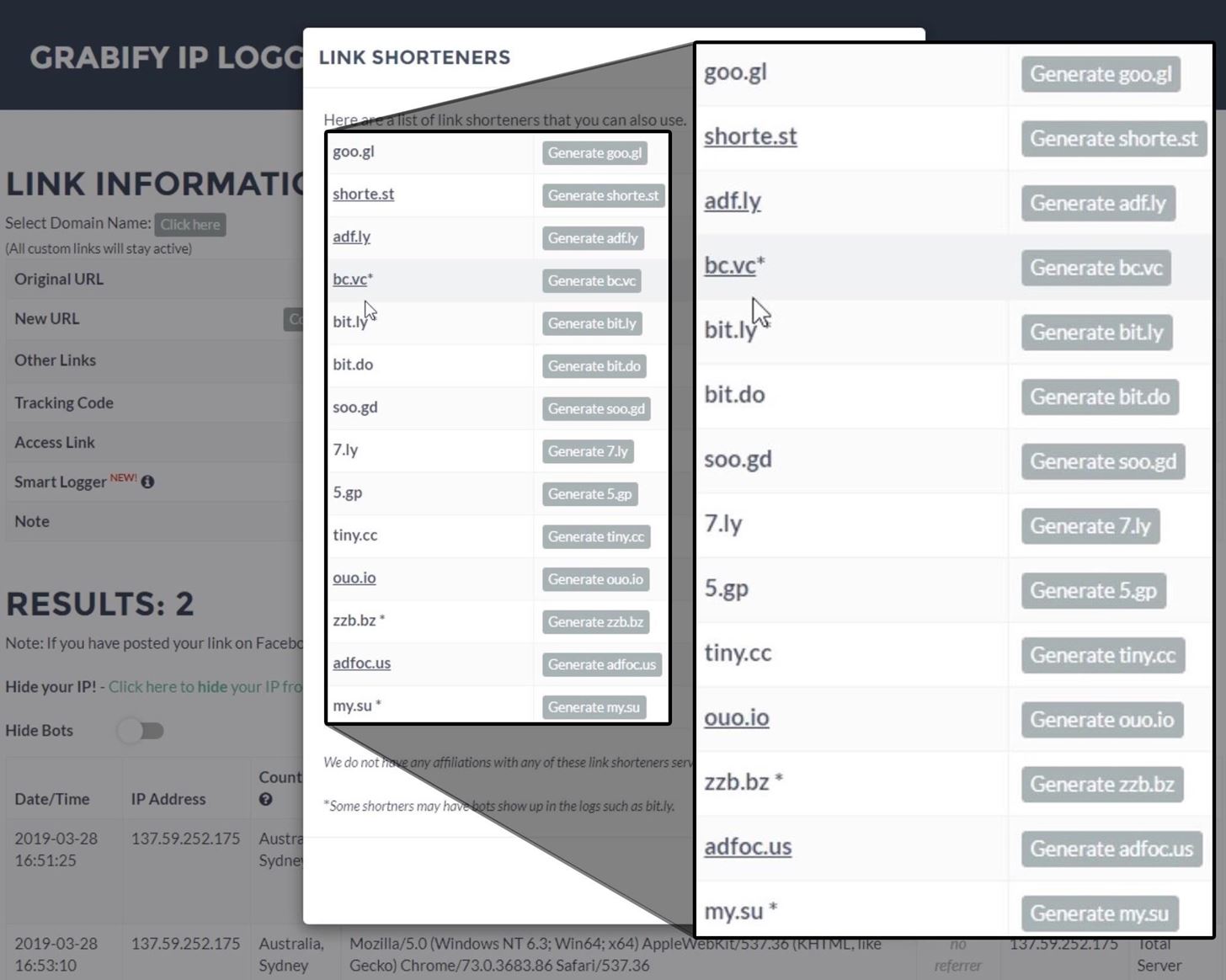
Grabify isn't exactly a subtle URL name, so part of successfully getting your target to click or tap on a link is providing a link that doesn't look too out of place. You can obscure the link with any number of URL shorteners, some of which are available right in Grabify.
Below, you can see the list of URL shorteners Grabify supports. Click on "View Other link Shorteners" next to Other Links on the log page.
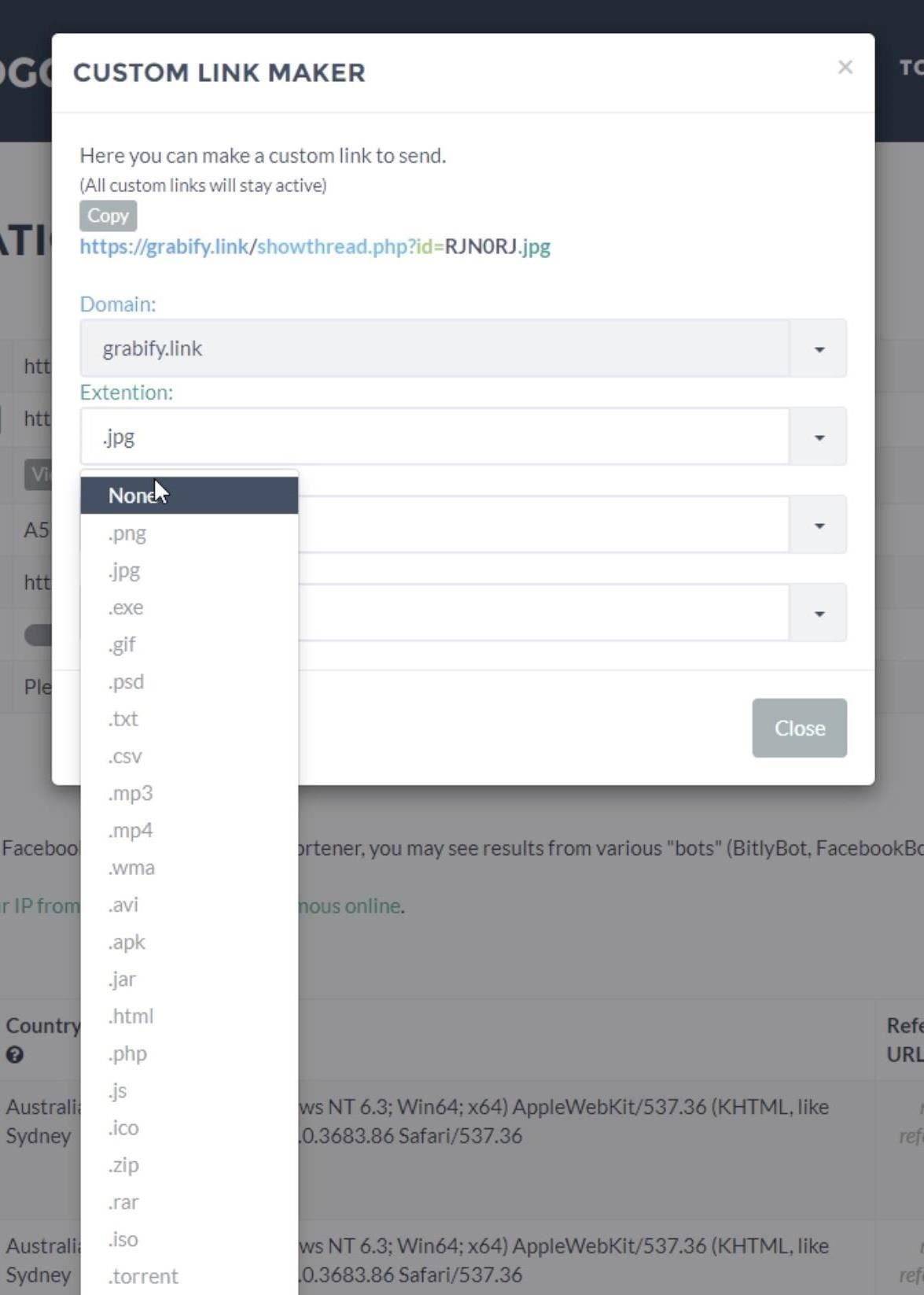
If the included shortener options don't suit your situation, you can always create a custom link that looks like an image file, GIF, CSV, HTML, Torrent, or ISO file.
Click on either "Click here" beside Select Domain Name or "Change domain/Make a custom link" in the New URL box, then check out the "Extension" drop-down. You can make it look like you're sharing a file rather than a referral link, which may work better to trick the target into clicking or tapping on your link.
In this custom link menu, there are also options to a different domain from one of the ones provided by Grabify, provide a custom path, and give a custom parameter.
Once you generate a shortened link or a custom URL disguise, you're ready to present it to the target. Once the target clicks or taps the link, an entry will appear under the "Results" section of your log page.
Step 4: Interpret the Tracking Information
Now, open your target link and see what you get. In the default configuration, you don't use a fake referral page, so you don't get the most information possible.
You should see a detection on your management portal (you may need to refresh the page), and you can select it to view more details. As you can see in my example below, I have the essentials, like the location, IP address, and information such as the internet service provider and operating system.
To kick things up a notch, you can enable the "Smart Logger" feature by clicking the toggle switch on the web interface. The toggle enables a fake tracking page that will be able to extract a lot more information.
Once "Smart Logger" is enabled, open the link again and take a look at the recorded information. This time, you should see a lot more information.
This extra information can tell us a lot. For one, in my example, the internal IP address tells us that this person is likely connected to a VPN, as a standard local IP address would probably look like "192.168.0.2" or something similar. We can also see more information about the specific device that made the request, as well as the screen size and browser extensions installed.
You'll also notice that you can learn if the battery is charging and what battery level is. It could allow you to track a person over a short period, with their battery level either increasing if charging or decreasing if not charging, which could identify the device uniquely. Another overlooked value is the language and time zone, which are often set by the system.
In some cases, we can see the make and model of the device making the request, allowing us to pinpoint the hardware used by the target. Any of these details may be enough to bust a catfish, either by revealing them to be in the wrong state or country, showing a device different from the one the person uses in their (probably fake) photos, or by showing a time zone that makes no sense for where they claim to be.
Hey, What's up, OnlineHacking !! I had already shown you several ways to run Windows 10 on Android Phone whether using Limbo Emulator or Bosch or Cloud Computer but I had never shown you how to run it using a simple terminal app i.e Termux by using Qemu in it. Although I had already made several videos on running different operating system on Termux like Kali Linux or Ubuntu this time we are going to see how easily we can run Windows Operating System on Android Phone just by running few commands on Termux and if you will like this post I will also show you how to run the Windows 8.1 on Android using Termux only in an upcoming post so just comment down below if you are interested. This method is quite interesting as this will make you understand how powerful a Linux terminal can be so without wasting any more time let’s start this tutorial.
eDEX-UI is a fullscreen, cross-platform terminal emulator and system monitor that looks and feels like a sci-fi computer interface.
Heavily inspired from the TRON Legacy movie effects (especially the Board Room sequence), the eDEX-UI project was originally meant to be "DEX-UI with less « art » and more « distributable software »". While keeping a futuristic look and feel, it strives to maintain a certain level of functionality and to be usable in real-life scenarios, with the larger goal of bringing science-fiction UXs to the mainstream.
It might or might not be a joke taken too seriously.
Hey, What's up, Geeks !! I had already shown you several ways to run Windows 7 on Android Phone whether using Limbo Emulator or Bosch or Cloud Computer but I had never shown you how to run it using a simple terminal app i.e Termux by using Qemu in it. Although I had already made several videos on running different operating system on Termux like Kali Linux or Ubuntu this time we are going to see how easily we can run Windows Operating System on Android Phone just by running few commands on Termux and if you will like this post I will also show you how to run the Windows 8.1 and Windows 10 on Android using Termux only in an upcoming post so just comment down below if you are interested. This method is quite interesting as this will make you understand how powerful a Linux terminal can be so without wasting any more time let’s start this tutorial.


 October 19, 2020
 By
SUMAN MONDAL
By
SUMAN MONDAL