

How to Download, install ngrok in Android Termux [Also work for non-rooted devices]
 April 26, 2020
 By
SUMAN MONDAL
By
SUMAN MONDAL


How to Download, install ngrok in Android Termux/Linux [Also work for non-rooted devices]


What is Ngrok?
- Ngrok is a multi-platform tunneling and reverse proxy software that establishes secure tunnels from a public endpoint such as the internet to a locally running network service while capturing all traffic for detailed inspection and replay.
- I make this Tutorial because in my next Tutorial ngrok is essential. So, I make this tutorial to understand my next Tutorial easily. I hope by reading this you will clearly understand that why there is a need for separate Tutorial for ngrok.
- How to download ngrok
- How to install ngrok in Android Termux
Requirements
Either choose between the following options:
Termux
Download Link
Hacker's Keyboard
Download Link
- Ngrok
Either choose between the following options:
- Intermediate
- Procedure
pkg update && pkg upgrade && pkg install python2
and press Enter, click y and press Enter if it asked for continue.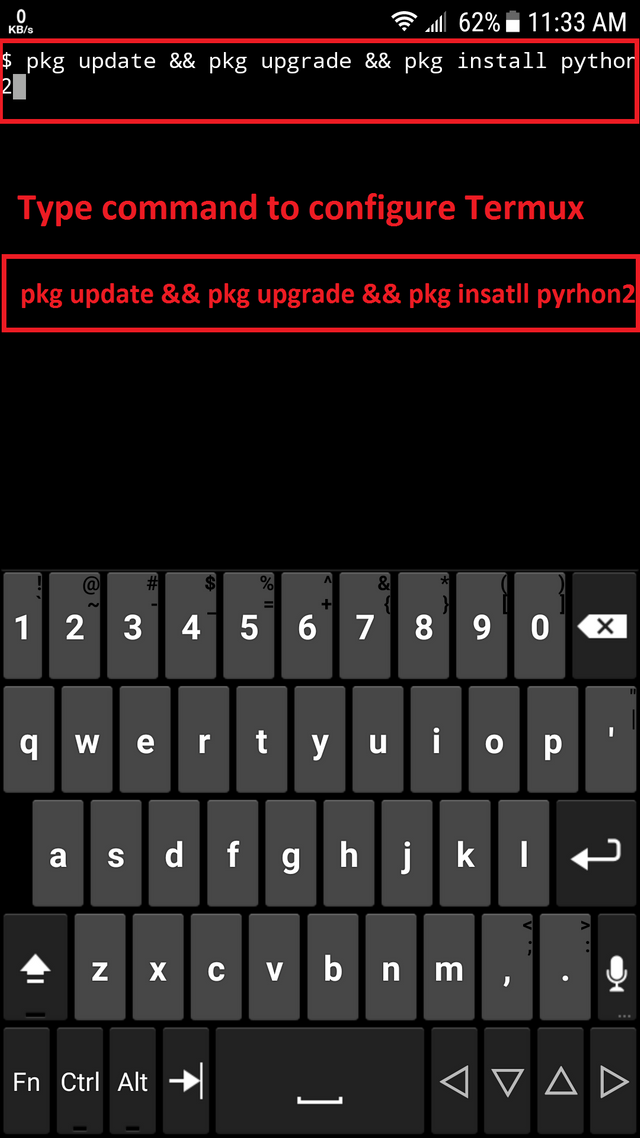
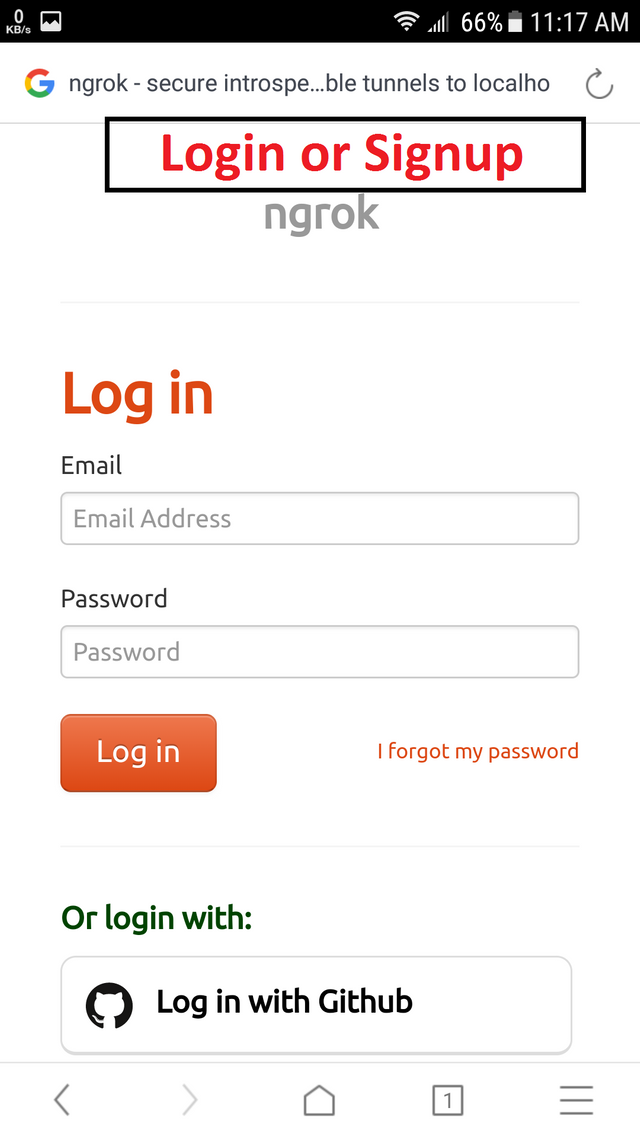
2: Login or Signup
- Visit this website and Login/signup
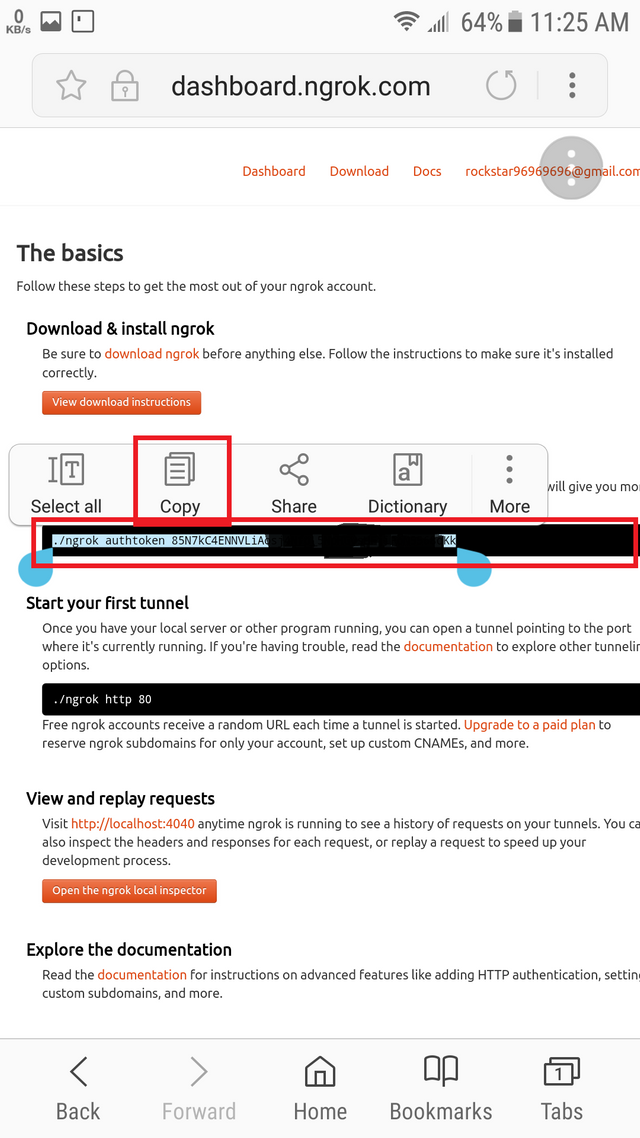
- Now go down and there will be a Connect your account heading. Copy your authtoken as shown in this screenshot
3: How to Download
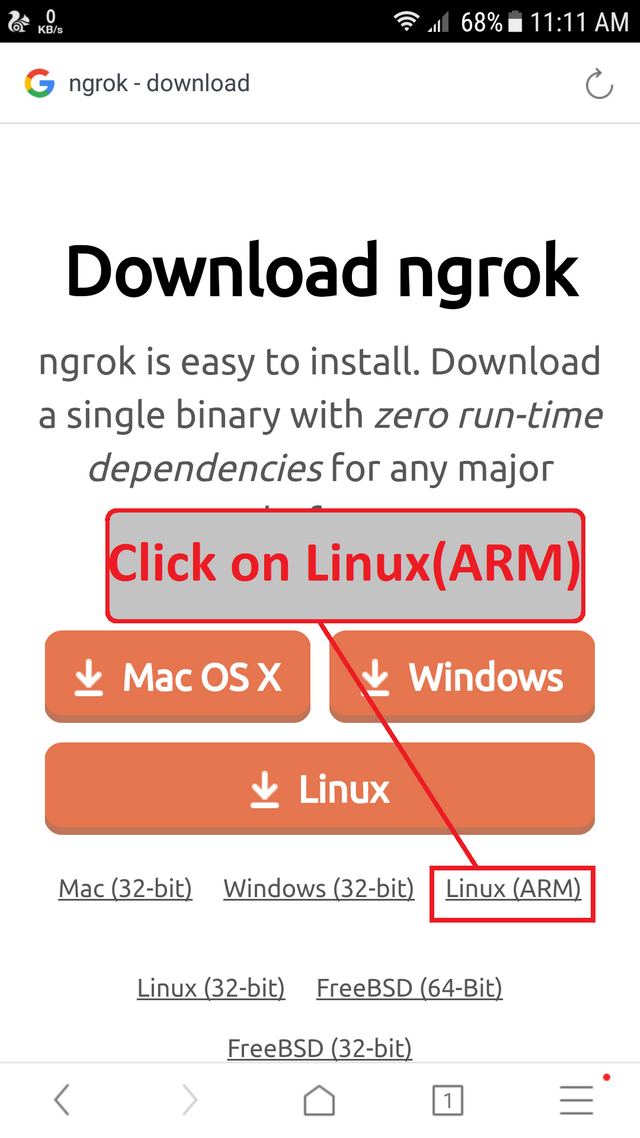
- Downlaod .zip file Linux(ARM)
- Visit websiteClick on Linux(ARM) as shown in this screenshot
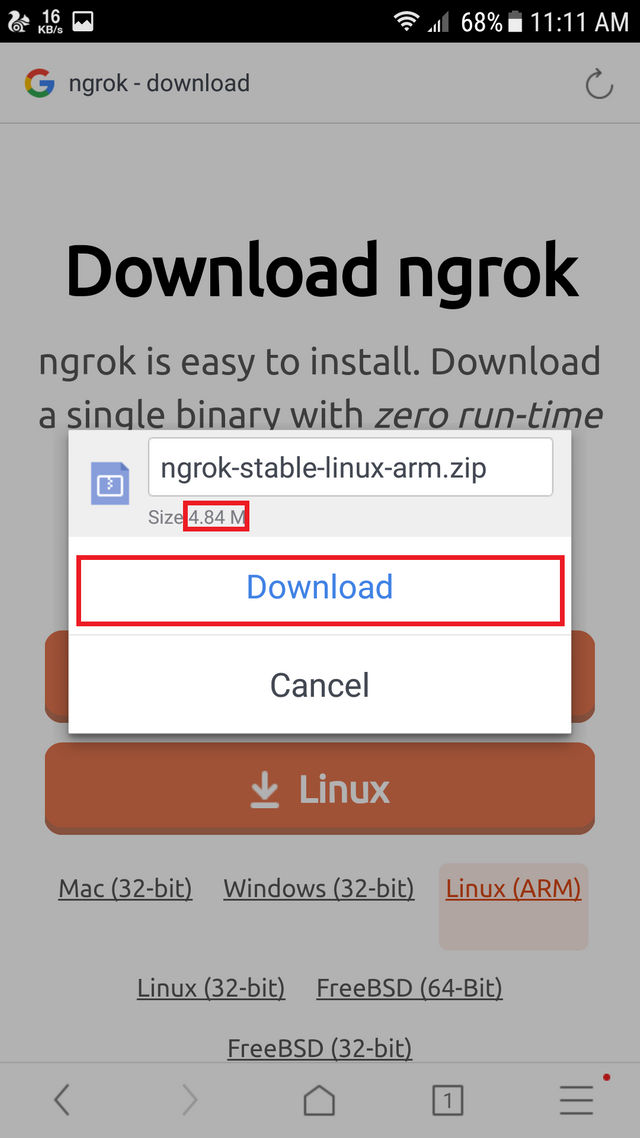
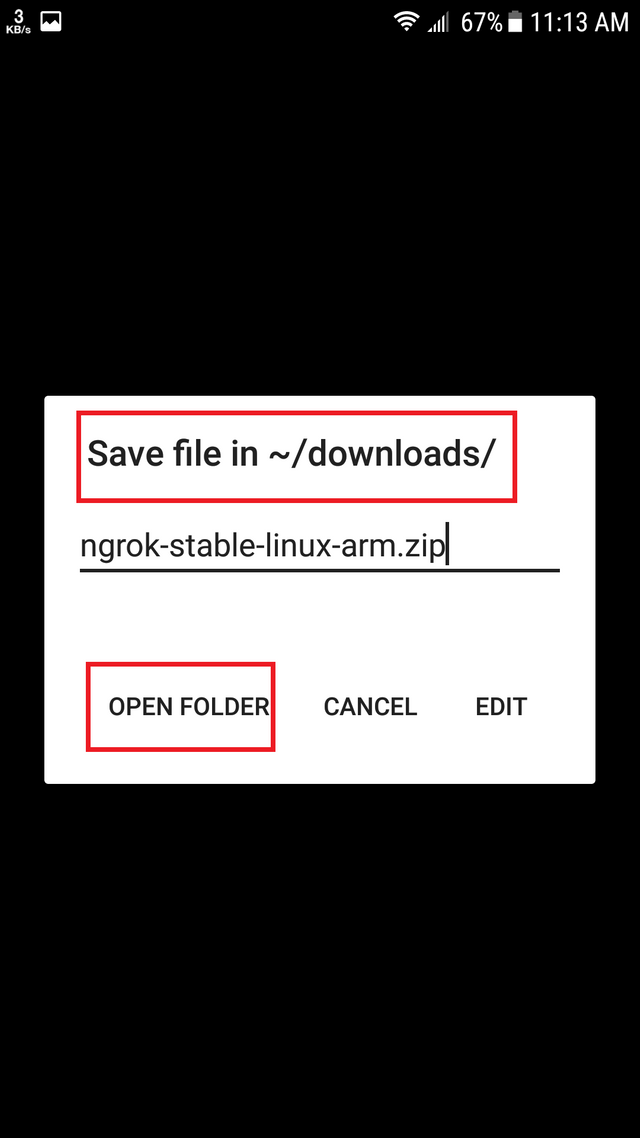
- Download .zip file it's a 4.84MB package
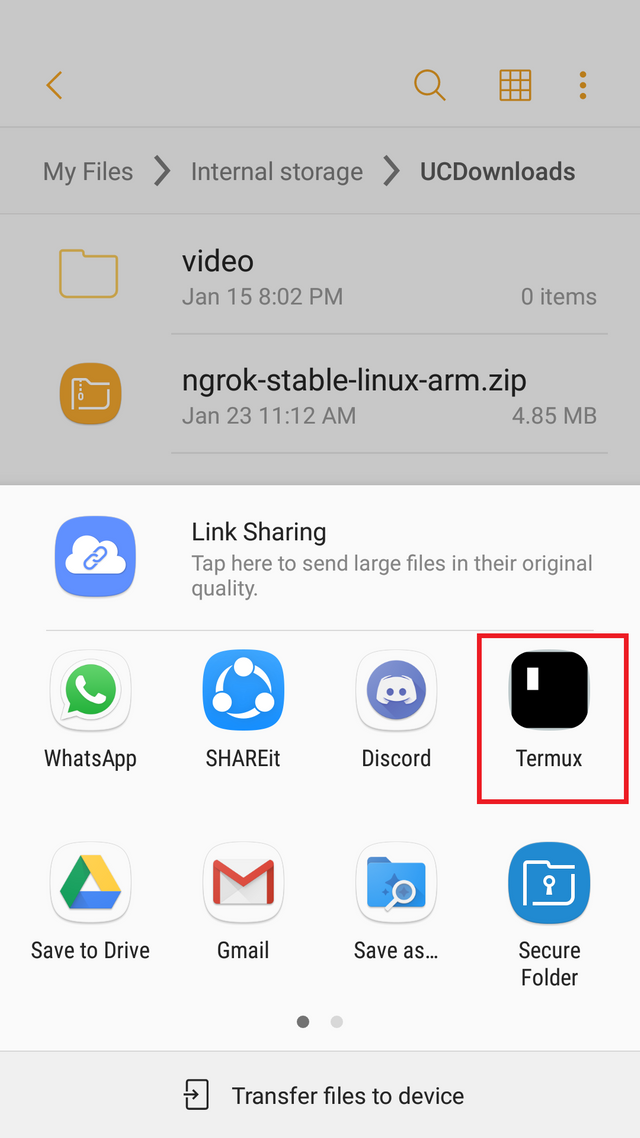
4: Now go to downloaded file folder and click on share
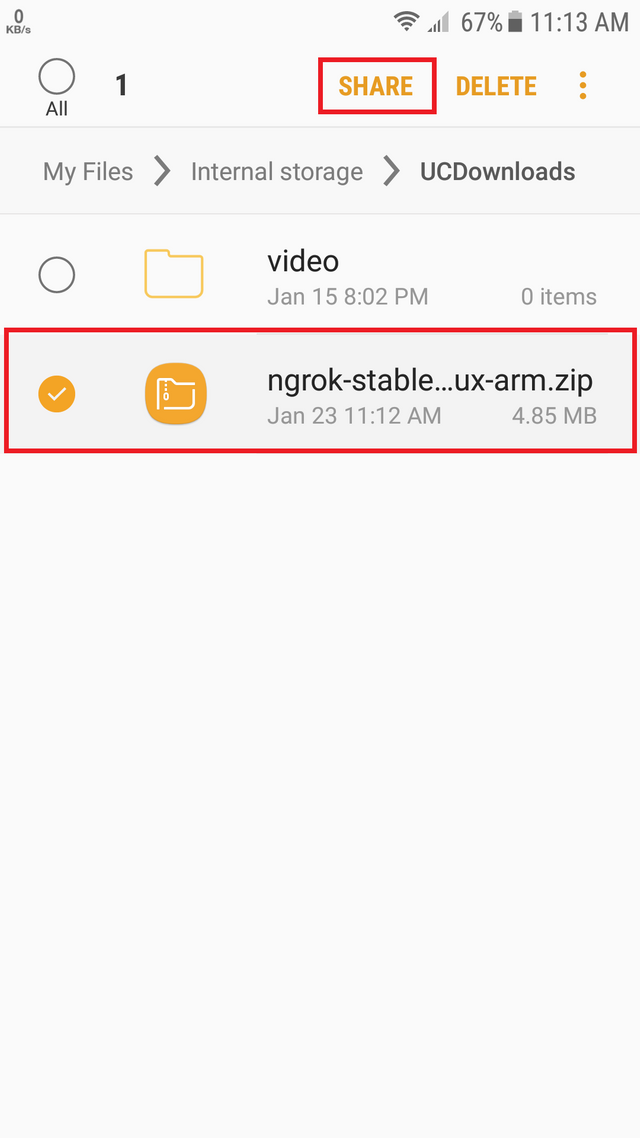
- Select termux there
- Click on open folder
5: Now type command
ls you will see the downloaded .zip file there .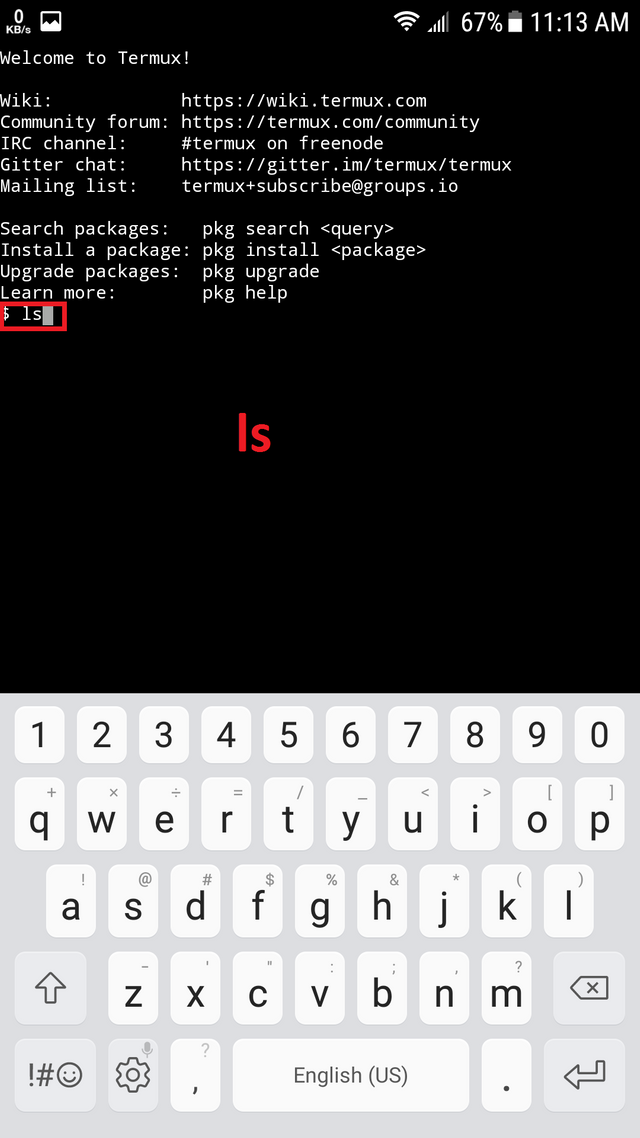
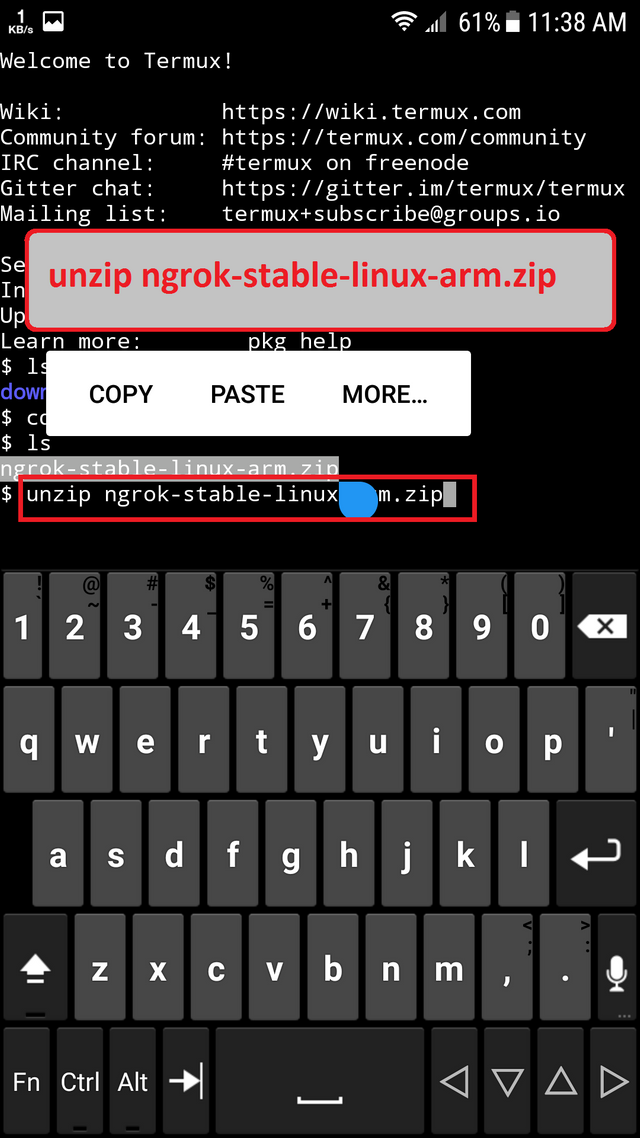
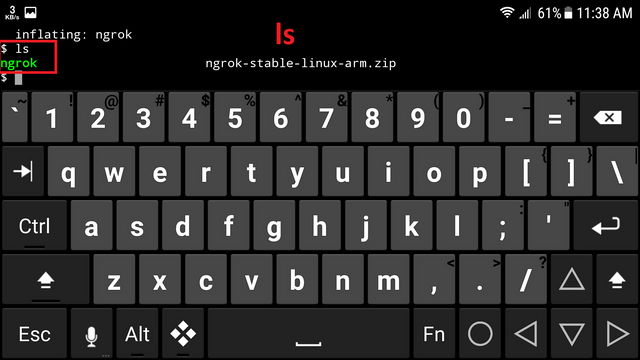
- Now type command
unzip ngrok-stable-linux-arm.zip. It will unzip the zip file.
6: How to Install?
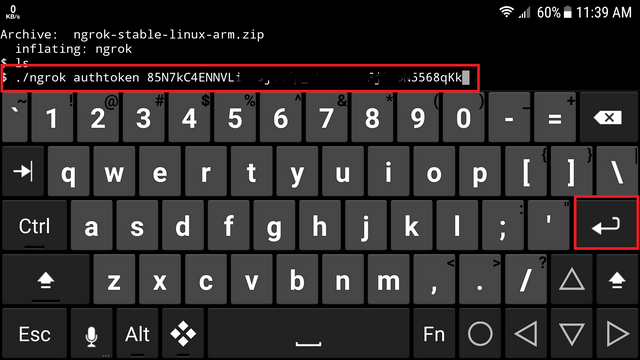
- Type command
./ngrok (authtoken). Here authtoken is the token that you copy in step-2. As I shown in this screenshot. For privacy reason, i am hidden my authtoken. If will said that file not implemented. But the to token is saved to the configuration file. You are done with it don't worry. You will check your account is authenticated in next steps.
7: How to use ngrok?
- Type command
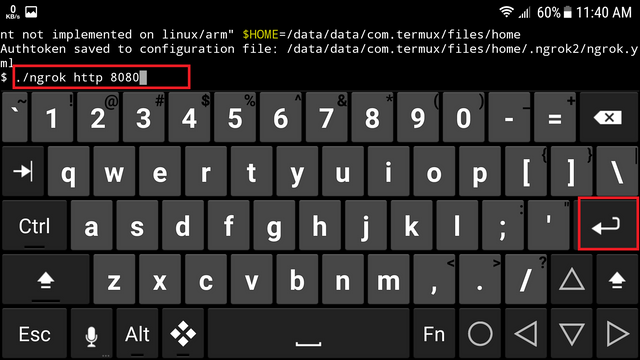
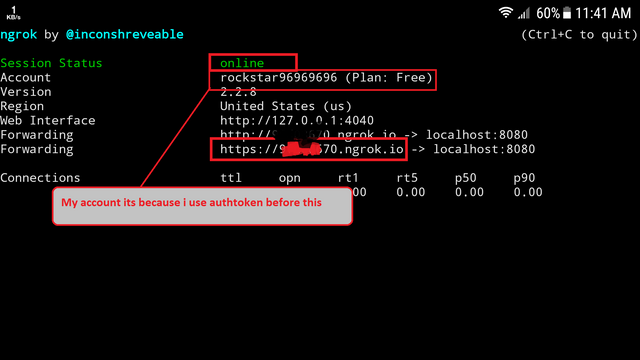
./ngrok http 8080. Here 8080 is port you change your country best port. Wait a minute while it is reconnecting it will show online status when ready. Enjoy!
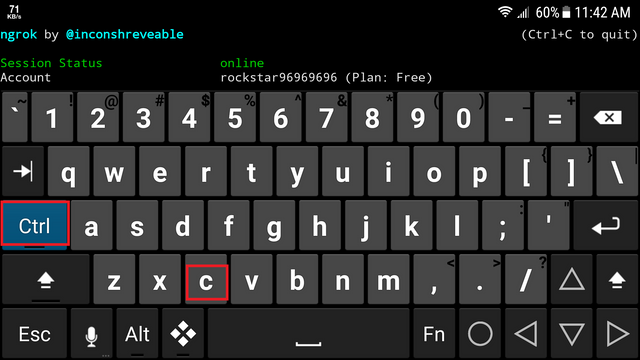
- Press ctrl+c to cancel (Alternative "Vol-down"+c)

Online Hacking Admin
This information is only for educationla purpose and we are not responsible for any kind of illegal activity

0 Comments:
Post a Comment